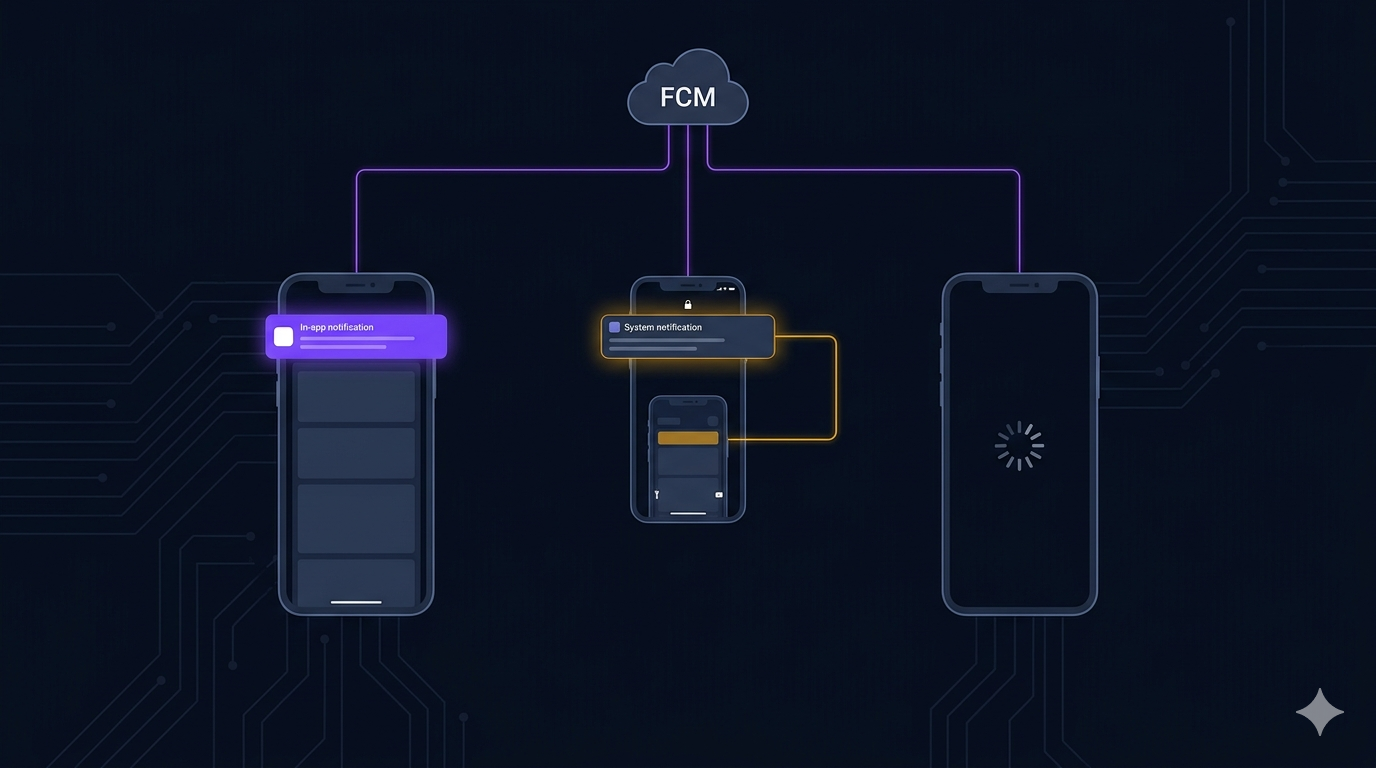

Most Firebase Cloud Messaging tutorials show you one scenario: the app is in the foreground, a notification arrives, and you show a snackbar. That’s the easy case. The real problems start when you need to handle all three app states — foreground, background, and terminated — each with fundamentally different constraints and APIs.
I learned this the hard way. Cabo is a real-time multiplayer card game. When one player invites another to play, the invite arrives as a data-only FCM message with a commandpayload. How that invite is handled changes completely depending on whether the recipient’s app is active, minimized, or killed.
The Three States
Firebase Messaging defines three listeners, each for a different app state:
| State | Listener | Can navigate? | Has context? |
|---|---|---|---|
| Foreground | onMessage | Yes — context is live | Yes |
| Background | onMessageOpenedApp | Yes — user tapped the notification | Yes (after resume) |
| Terminated | getInitialMessage() | Yes — but must wait for app init | No (cold start) |
The foreground case is straightforward. The background case requires you to check whether the user is in a game before navigating. The terminated case requires you to queue the message and process it after the app finishes booting.
Foreground: the simple case that isn’t
When the app is in the foreground, onMessage fires immediately. We suppress the system notification (we handle display ourselves) and route the data payload through a central handler:
FirebaseMessaging.onMessage.listen((RemoteMessage message) async {
  if (message.data.isNotEmpty) {
    _handler.handleMessage(message.data, MsgSource.Foreground);
  } else if (message.notification != null) {
    _handler.handleNotification(
      message.notification?.title, message.notification?.body);
  }
});
The subtlety: in foreground, the user sees the app. If they’re mid-game, we don’t want to interrupt them with an invite banner. So the handler checks the user’s presence status before showing anything:
if (source == MsgSource.Foreground) {
  final status = presence.currentStatus;
  if (status == UserStatus.busy || status == UserStatus.waiting) {
    // Silent drop — user is in an active game
    return false;
  }
  InAppInviteBanner.show(data: data);
  return false;
}
In foreground, we show an in-app invitation banner, not a system notification. The user can tap “accept” or dismiss it without leaving their current context.
Background: the presence problem
When the app is in the background, Firebase shows a system notification. When the user taps it, onMessageOpenedAppfires. Sounds simple, but there’s a trap: the app’s presence status has already transitioned to inactive or offline because the lifecycle event fired when the app was minimized.
void onAppPaused() {
  updateStatus(UserStatus.inactive);
  // After 3 minutes, switch to offline
  _backgroundTimer = Timer(const Duration(minutes: 3), () {
    updateStatus(UserStatus.offline);
  });
}
If we checked currentStatuswhen handling the background notification, we’d always see inactive — and always navigate. But the user might be mid-game. The app was minimized, sure, but the Cabo session is still active on the server. Navigating them to a new room would destroy their current game.
The solution: a second status field called logicalStatus that tracks the app’s intent, not the OS lifecycle state.
/// The last meaningful status set by the app (game screens, lobby, home).
/// Never set to inactive/offline — those are lifecycle-managed.
/// Use this (not currentStatus) when checking whether the user
/// is actively in a session.
UserStatus? _logicalStatus;
UserStatus? get logicalStatus => _logicalStatus;
Now the background handler uses logicalStatus:
if (source == MsgSource.Background) {
  final status = presence.logicalStatus; // not currentStatus!
  if (status == UserStatus.busy || status == UserStatus.waiting) {
    // User is in an active session — don't interrupt
    return false;
  }
  // Not in a game — navigate directly
}Terminated: the cold start problem
When the app is killed (terminated by the user or the OS), there’s no onMessage and no onMessageOpenedApp. Firebase shows the system notification. When the user taps it, the app cold-starts. The message is retrieved via getInitialMessage().
The problem: at cold start, nothing is initialized yet. The router hasn’t booted. The DI container hasn’t registered services. The presence service hasn’t connected. If you try to navigate immediately, everything is null.
// Terminate-state: Firebase delivers the message after app init
FirebaseMessaging.instance.getInitialMessage().then((message) {
  if (message != null) {
    // Queue it — process after router + DI are ready
    FcmListener.initialMessage = message.data;
  }
});
We queue the message and process it after the app finishes initializing. In our main app startup flow:
// After router, DI, and auth are ready:
if (FcmListener.initialMessage != null) {
  _handler.handleMessage(FcmListener.initialMessage, MsgSource.Terminated);
  FcmListener.initialMessage = null;
}
For terminated state, we skip the presence check entirely. The app just started — there’s no active session to interrupt. We navigate directly to the game room, and CaboHomeController.init() handles the case where a session already exists on the server.
Surpressing foreground notifications
One more detail that caught me off guard. By default, Firebase shows a system notification even when the app is in the foreground. For a data-only message (no notificationkey in the payload), this doesn’t happen — but if your server sends both notification and data, iOS will silently show the notification bannerand deliver the data payload.
We opted to handle all foreground display ourselves. The fix is a single call in setup:
await _fcm!.setForegroundNotificationPresentationOptions(
  alert: false,  // We show in-app banners instead
  badge: false,
  sound: false,
);
On Android, you also need a custom FlutterNotificationChannel in the AndroidManifest.xml to prevent the default channel from showing heads-up notifications while the app is visible.
The background handler has to be top-level
The third handler — onBackgroundMessage— runs in a separate Dart isolate. It must be a top-level function, not a static method or a lambda. Flutter’s AOT compiler will tree-shake it if it’s not annotated.
@pragma('vm:entry-point')
Future<void> firebaseBackgroundMessageHandler(RemoteMessage message) async {
  await FirebaseApp.initializeApp();
  // That's it. No navigation, no DI, no services.
  // The system notification is already shown by Firebase.
  // onMessageOpenedApp handles the tap.
}
Our background handler does almost nothing. It initializes Firebase (required in the separate isolate) and returns. The system notification is already visible. When the user taps it, onMessageOpenedApp takes over in the main isolate.
The full flow diagram
Here’s how the three flows work together:
- Foreground:
onMessage→ handler checkscurrentStatus→ if not busy: show in-app banner. If busy: silent drop. - Background: System notification shown by Firebase → user taps →
onMessageOpenedApp→ handler checkslogicalStatus→ if not busy: navigate to game. If busy: silent drop. - Terminated: System notification shown by Firebase → user taps → app cold-starts →
getInitialMessage()→ queued → processed after init → navigate directly (no presence check needed — fresh start).
What I’d Tell My Past Self
- Don’t use
currentStatusfor background routing. It reflects the OS lifecycle, not the app’s intent.logicalStatusis what you actually want. - Queue
getInitialMessage()and process it after init. Cold-start messages arrive before your router or DI is ready. Don’t try to navigate immediately. - Suppress foreground system notifications if you handle display yourself. Set
alert: false, badge: false, sound: falseand show your own in-app banner. - Make your background handler a no-op. The system notification is already shown. Let
onMessageOpenedApphandle the tap. Keep the background handler minimal. - Test all three states separately.Each state has different constraints. A notification handler that works in the foreground will silently break in background or terminated if it doesn’t account for app lifecycle.